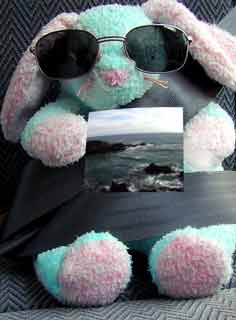
Reflections in Sunglasses
As you build custom
reflections in your sunglasses, you will learn some neat things about
using Photoshop:
- Dragging one file as a
layer onto another file.
- Duplicating a layer.
- Resizing a layer.
- Using the spherize
distortion filter.
- Adjusting opacity of a
layer.
- Using the pen tool to
make a selection.
- Making a selection
into a layer mask.
|

|
 |
|
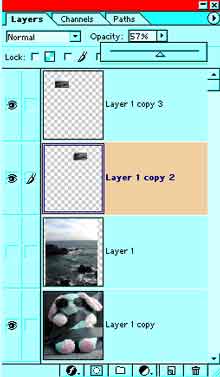
| 1. Open
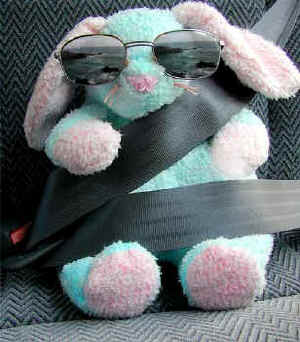
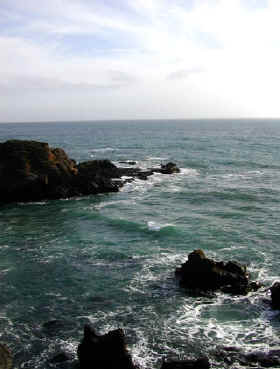
your reflection picture (mine is the ocean.) and your sunglasses
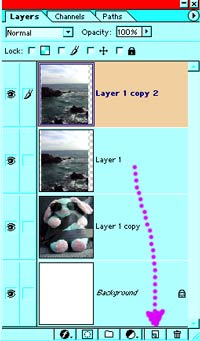
picture. Drag the reflection picture onto the sunglasses picture. In the
layers palette, drag the reflection picture down to the new layer icon
to duplicate it. Turn off the eye on the duplication. We won't need it
unless we mess up on this.
Think of a name for this file and then File ->
Save as and name it. Leave it in psd format.
|
|
|
|
2. Edit
-> Transform -> Free Transform and reduce the size on the
reflection picture till it is about the size that it will need to be. It
won't matter if the proportions get a bit skewed at this point because
you are going to skew them worse in a minute! Hit the Enter key when you
get your sizing close.
3. The reflection will need to be distorted to
reflect the curvature of the glasses. Drag your smaller picture to the
center of your canvas and then Filter -> Distort -> Spherize. You
can experiment with different settings here. I used 100%.
File -> Save.
|
| 4. Edit
-> Transform -> Free Transform and this time, get the picture so
that it fits as well as it can in both lenses. Drag it to the other one
and make sure that it fits. You can mess up the proportions if you need
to here. Sunglasses do that in real life, you know. <g> Click the
Enter key when you are satisfied with your transformation. |
|
|
|
5. Drag
this reflection layer to the new layer icon to duplicate it. Drag
one to one lens and the other to the other lens.
6. Reduce the opacity of both reflection layers
till you can clearly see the sunglasses under them.
File -> Save.
|
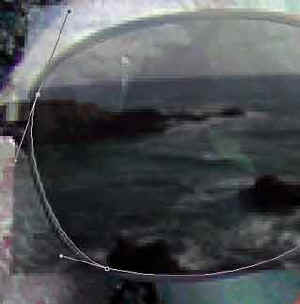
| 7. Now
you need to make a selection from each of the lenses. You can do this
using whatever selection tool works for your situation. Since my lens is
a smooth rounded curve, I'm using the pen tool. First zoom in. I
have clicked around at the "corners" of the lens with the pen
and then used the "convert point" tool, clicking and dragging
along on each of the points in turn, pulling and pushing the handles
till I get the curve fitting the way i like. This takes a bit of
practice, but it is a good thing to be able to do. If you use the pen,
you will get two lenses here on which to practice. If you are
using the pen tool, as i did, click on the paths palette and down at the
bottom, click the "loads path as selection" button.
(For more beginning practice on the pen tool, see
my Raindrops tutorial or my Heart
1 tutorial.)
|
 |
|
|
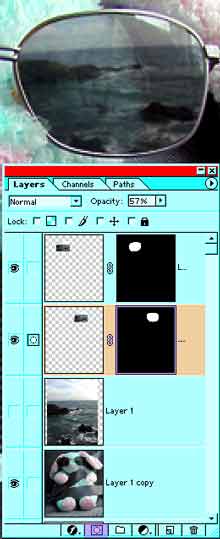
8. Once your selection is made, with
the appropriate reflection layer selected, click the layer mask
button on the bottom of the layers palette. (highlighted in the
diagram to the left) Shazam! This makes a mask from the selection. This
way if your selection is not exact, you can fix it by touching up the
mask.
9. Repeat steps 7 and 8 for the other
lens.
10. I'm going to paint a bit of black
on the right lens to expose that bit of bunny fur that the reflection is
covering. Click the mask in the layers palette to be sure that it is
selected, and then zoom in and paint with the paintbrush.
11. Make any final adjustments that you
want to the opacity of the lenses.
File -> Save.
If, at this time, you want to save this
to send to your mom, choose File -> Save for Web and then follow that
wizard to save it into jpg format. Do not flatten your image. Keep your
psd file intact in case .. well you never know when you might need a bunny
in sunglasses!
|
|
I hope you enjoyed this tutorial!
Always me,

|
 |
|
|
RETURN to Janee's Tutorial Index
email me!
Ask tutorial questions in the Message Board:

|
|
|
| All material in this site is ©2001-2003 by myJanee.com Graphic Creations. No part of it may be used without my written permission. If you have questions or comments about this site or its construction, contact Janee at myJanee.com Graphic Creations, 7193 W Gifford Rd, Bloomington, Indiana, USA 47403 or by email. |
|
|
|
|